Update a button label
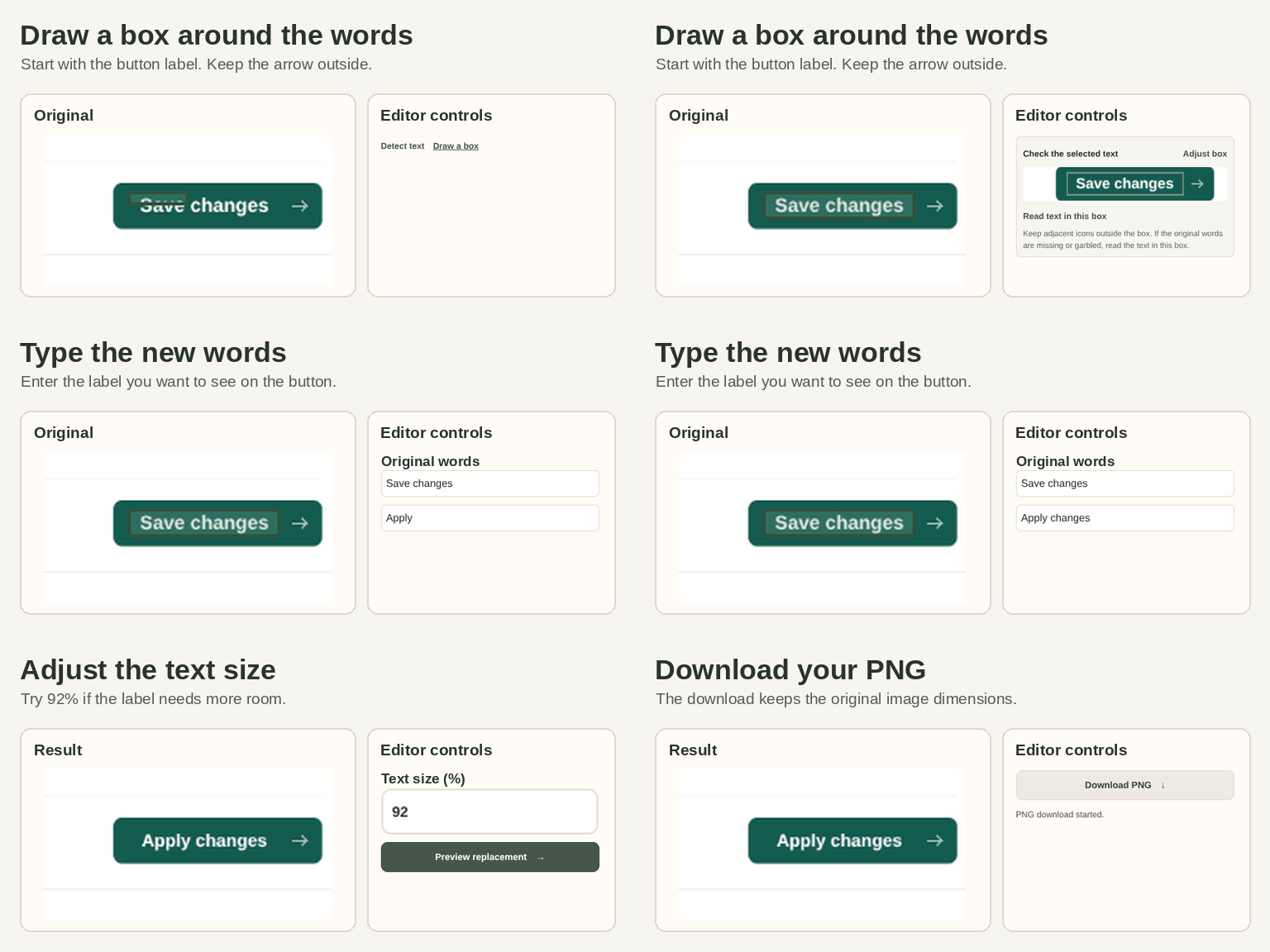
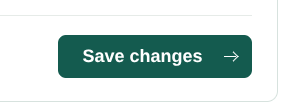
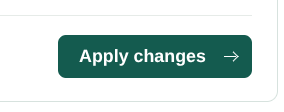
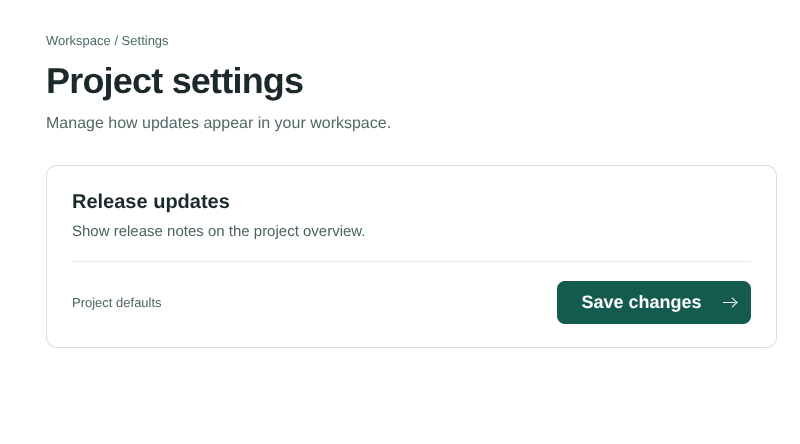
Save changes → Apply changes. Check the padding and the arrow beside the new label.
Fix a typo or update a UI label. Pick the words, type the replacement, and check the result before downloading.
Choose a file, drag it here, or paste a screenshot.
PNG or JPG · Up to 12 MB, 16 MP and 8,192 px per side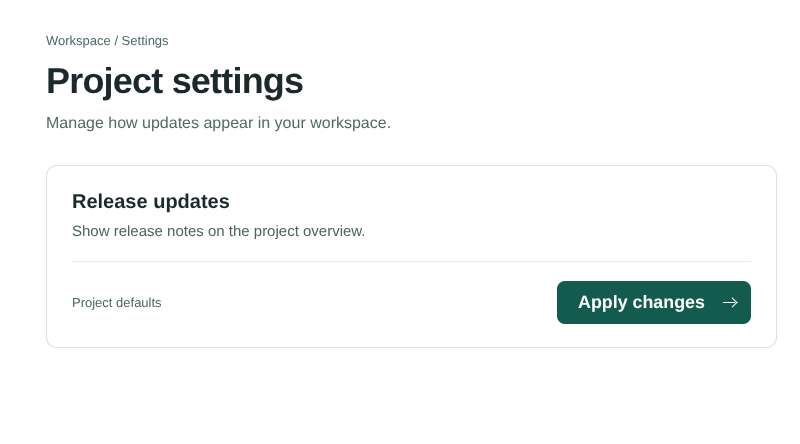
Pick a detected line, or draw a box around the words you want to change.
These previews are cropped from RetypeImage exports. Open a sample to try your own wording, or compare screenshot text editors on the same input.
Save changes → Apply changes. Check the padding and the arrow beside the new label.
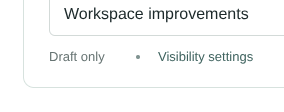
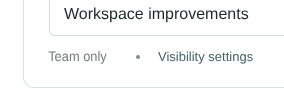
Draft only → Team only. If text detection groups the whole line, draw a box around Draft only.
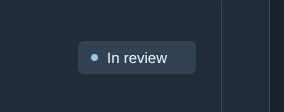
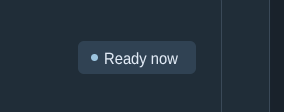
In review → Ready now. Check the contrast of the new text and the status dot beside it.
Use the screenshot text editor on finished screenshots for product docs, tutorials, or design review.
Change Save changes to Apply changes. Keep the arrow outside the box. If the replacement needs more room, open Adjust style and position and try Size (%) at 92 before previewing again.
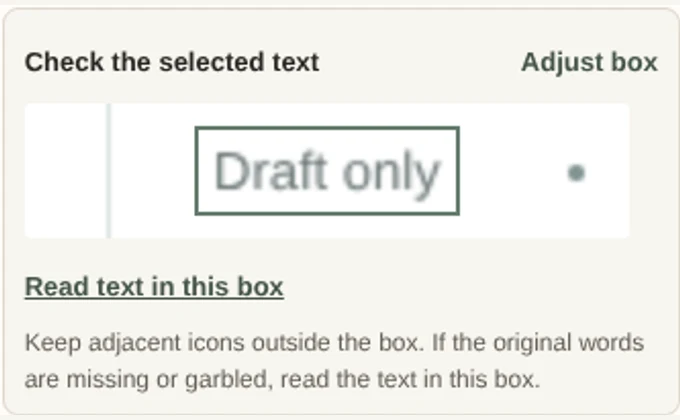
Load a PNG or JPG and select a detected line. If it includes a nearby icon or label, open Adjust box and move the corners. For missed text, draw a tight box around the words, then click Read text in this box.
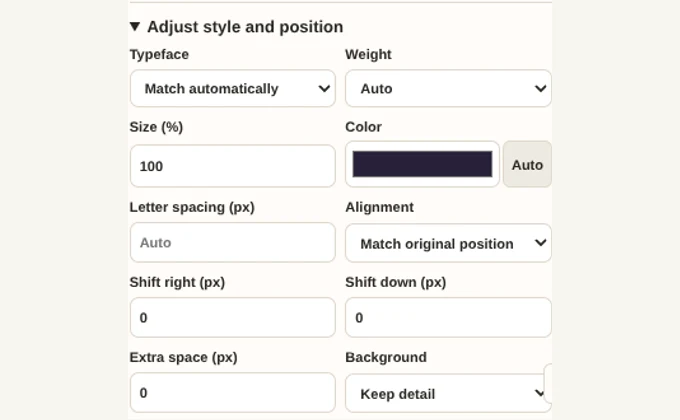
Fill in New words and preview. If the line is too long for a button or badge, shorten it or reduce Size. Use Weight, Letter spacing, and Shift down to bring the new line closer to the original.
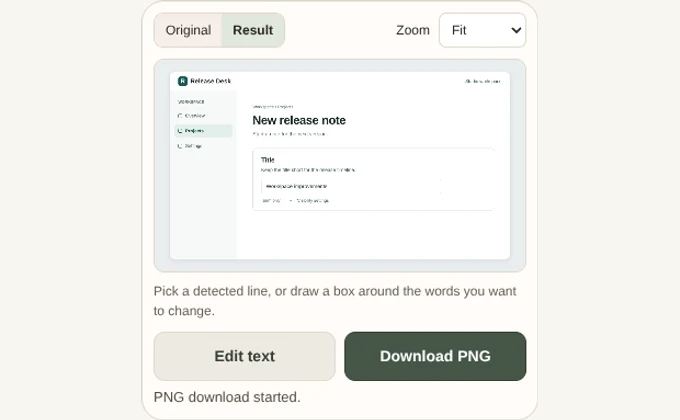
Switch between Original and Result. Zoom in to check the old letter edges, nearby icons, and background. Download the PNG when the preview looks right. It keeps the source image’s pixel dimensions.
Start with a sharp PNG and keep the box away from nearby icons and borders. Automatic detection works best on clear English text. A tight manual box can help when the surrounding text is grouped together. For photos, labels, and posters, use the image text editor.
Yes. Select or box a line of text in a PNG or JPG, type the new words, and preview the replacement in the same area.
Yes. You can edit, preview, and download a PNG without creating an account. The export has no watermark.
The image opens and is processed in your browser. The browser downloads the recognition code when you use text detection. Your screenshot and the words you type stay on your device.
RetypeImage estimates a close style from the visible lettering. You can adjust the typeface, weight, color, letter spacing, and position. Compare the preview with the original before you save.
Zoom in and draw a box around the words, or adjust an existing box. Click Read text in this box to scan just that line. You can also type the original words yourself.
Open a PNG or JPG up to 12 MB and 16 megapixels, with neither side over 8,192 pixels. The edited file downloads as a PNG with the original width and height.
Allow Google Analytics to count visits, editing steps and optional ratings. Your images and words stay on this device. Privacy details