All editor comparisons · · Desktop Chromium · Signed out
We tested seven screenshot text editors on the same PNG
RetypeImage and ScreenshotTextEditor both changed the button label and kept the arrow intact. A dark status badge told a different story: one editor included the neighboring dot in its selection.
Try the screenshot editorOne button, two usable exports
We asked each tool to change Save changes to Apply changes on the same 1120 × 640 PNG. A usable result had to preserve dimensions, button edges and the arrow, with the intended words readable in the downloaded file.
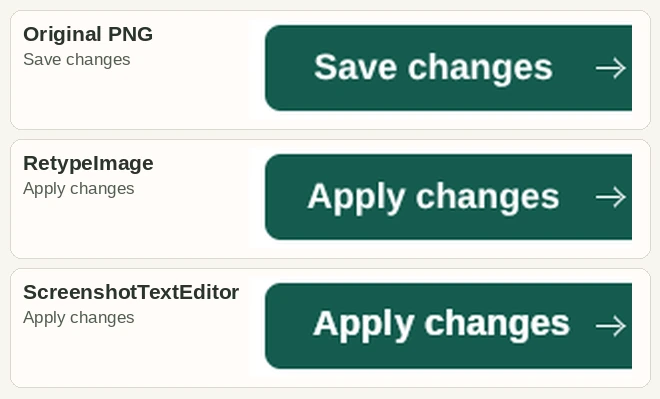
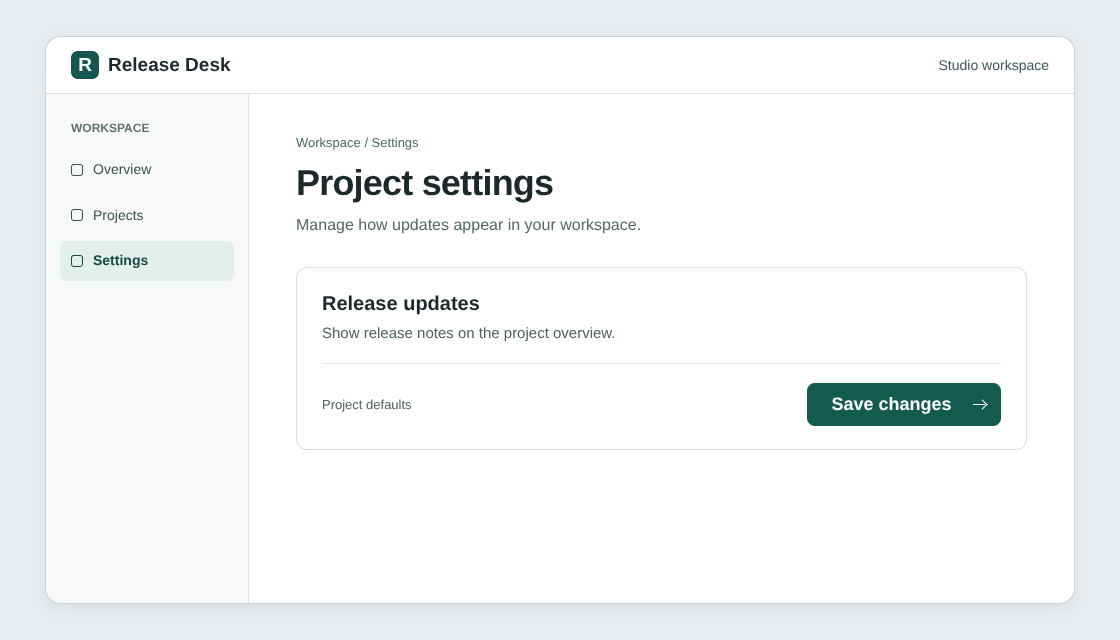
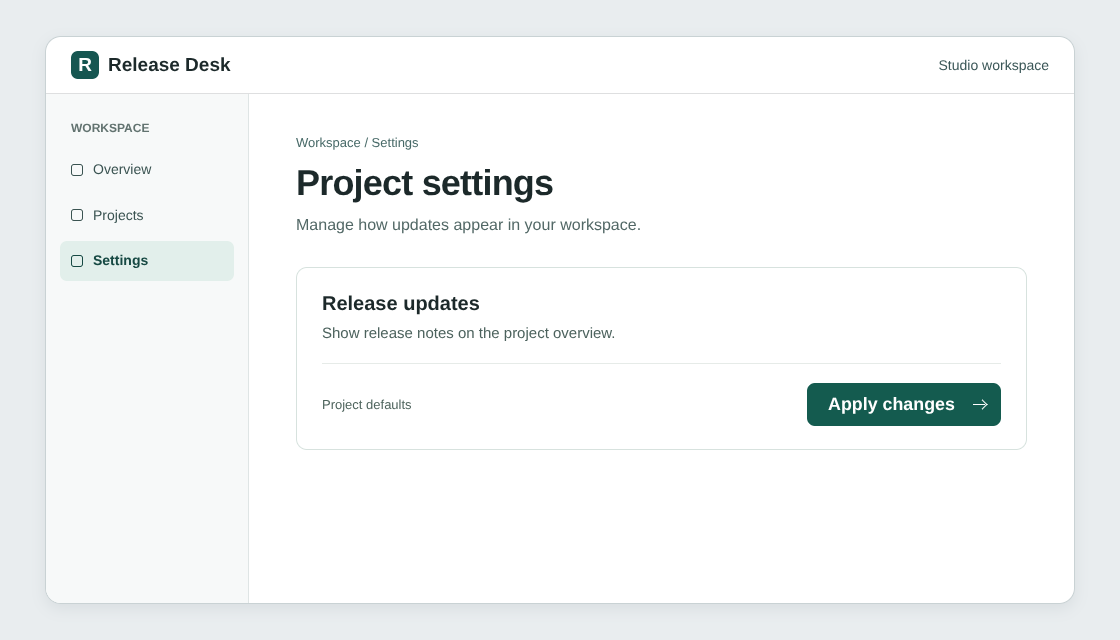
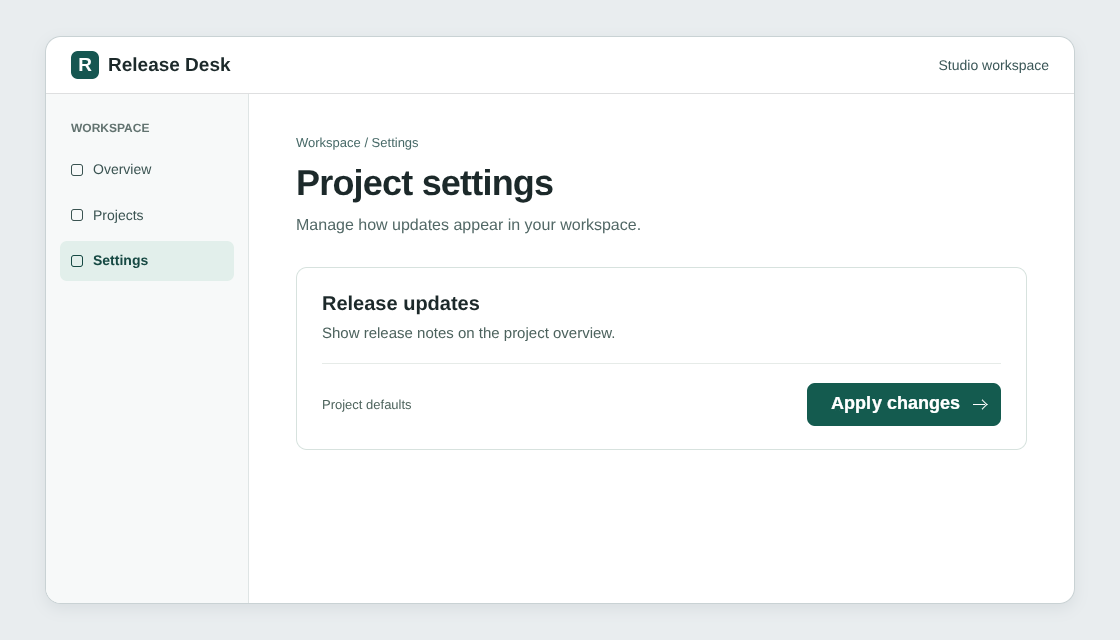
Independent OCR and visual inspection read the intended replacement in both downloads. Outside the same predefined box around the label, all 712,243 pixels matched the input in both files.
Small labels and nearby icons
A correct read needs a usable selection. We uploaded two more screenshots to check whether small text was found and whether adjacent marks survived the edit.
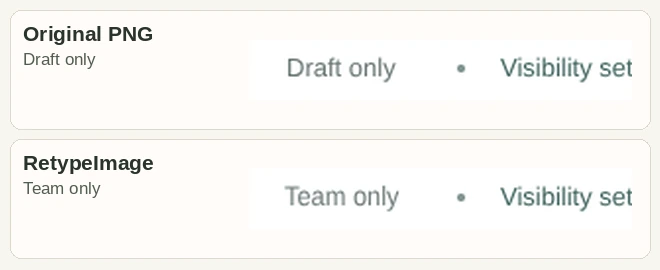
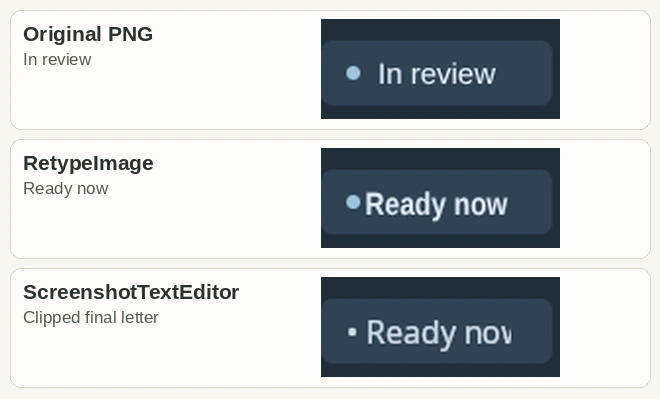
The dark badge still required a visual check on our side. RetypeImage’s replacement is slightly heavier and closer to the dot than the original. Open Adjust style and position if you need to fine-tune the weight or spacing before saving.
How far each tool got
The button test uses the free, signed-out path. For tools that stopped at a loading screen or account prompt, we record what happened in that session. Their paid workflows and export quality are unmeasured.
| Tool | Button test result | What stood out |
|---|---|---|
| RetypeImage | 3/3 correct original-size PNGs in the repeat test. No account or credits required. | On-device processing, a visible selection, and a second read for one boxed line if whole-image detection misses it. |
| ScreenshotTextEditor | Recognized the button and produced a matching PNG. One earlier download taken during style processing still contained the original words. | Direct text selection, font candidates and style controls. Check the export after matching finishes. |
| PhoText | Opened the editor after upload. No usable preview within a 56-second observation in this session. | The editor provides detailed typography controls and font search. |
| ClearCrowds | The test network returned HTTP 403 during upload on repeat attempts. No file verified. | The public workflow offers dedicated controls for text, numbers and dates. |
| Canva | Upload led to an account prompt in the signed-out session. No file verified. | Its screenshot editor offers a wider design workflow. Canva lists Grab Text as a Pro feature. |
| InPlaceText | Loaded the screenshot and showed a region selection. The session had no free credits left. | Focused tools for boxing and reading a line, with optional paid credits. |
| Fotor | File selected. No usable preview within the 42.5-second observation in the test session. | Its public workflow includes OCR, font matching and broader image editing controls. |
Time to the line and the usable file
We repeated the current RetypeImage button workflow in three fresh browser contexts. All three completed with a verified PNG. ScreenshotTextEditor completed the same edit during the repeat run and in two earlier sessions on the same day.
| Button test | File selection to target line | Navigation to download |
|---|---|---|
| RetypeImage · 3 runs | 1.71–2.51 s | 15.98–19.54 s |
| ScreenshotTextEditor · repeat run | 39.73 s | 72.10 s |
| ScreenshotTextEditor · 2 earlier runs | 6.35 s and 15.91 s | 24.26 s and 45.21 s |
Navigation times include page loading, browser actions, tool processing and waiting for the download signal. The runs shared a network proxy and load varied. These timings describe what happened in these sessions. Download the repeat-run measurements.
When RetypeImage is a good fit
If you have one line to fix in a screenshot and need to keep the file on your device, RetypeImage gives you a box you can check, a preview you can compare, and an original-size PNG you can save without signing in. In the three screenshot cases above, every verified RetypeImage file kept the surrounding pixels intact.
Check the selection before previewing. In our separate 47-image regression test, the current scanner found the correct words with a usable box on 19 of 35 difficult targets, up from 4. Low-contrast small text stayed at 2 of 8. If your line is missing, draw a box and choose Read text in this box, or type the original words yourself.
ScreenshotTextEditor is also worth trying if you want to review multiple font candidates. Check closely when a label touches an icon or sits on an uneven background. If you also need layout, design assets or multiple pages, try a full design editor and check which text features your plan includes.
Edit text in a screenshotHow we checked the files
RetypeImage ran this test using three original mock app screens at 1120 × 640, in desktop Chromium at 1366 × 900 while signed out. The button comparison includes the current production RetypeImage scanner. The initial access checks for the other tools were run earlier the same day. This is a product-run benchmark using a small set of screenshots.
We reopened each export, checked output text by sight and with independent OCR, and compared decoded RGB values. In source-image coordinates, the permitted regions were x=818, y=390, 147 × 31 px for the button, x=313, y=413, 77 × 27 px for the light hint, and x=904, y=321, 82 × 25 px for the dark badge. Each box excludes adjacent icons. The crops illustrate the exports. Pixel counts come from the full-resolution files.